For The Record - The rule-based scheduling suite (1 Viewer)

dvdfreak

Portal Pro
June 13, 2006
979
178
Home Country
Belgium Belgium
hi,

this error happens when you add all tv channels (or categories) to a recording rule. I think that there are simple too many entries.

Is it also possible to exclude something from the recording rule? Like description contains Bruce Willis and title not containing Die Hard (just an example - i like the die hard movies). Or to record on every channel except for these channels.

Were you using a TCP or HTTPS connection to the server when you got the error?

But you are right, it's due to an overflow when the rules become too complex. However, I thought I managed to bypass this problem by increasing the allowed buffer size, seems I missed out.

Negating rules is an interesting suggestion, perhaps that makes sense, but then you'd also need most rules twice. Because you'd like to say something like: contains "Planet" but does not contain "Red".

Or you could combine both in one rule, so you could enter a contains rules in a certain way, something like: "Planet;-Red".

For channels we'd need a different "Add" button then, one that adds the channel in a NOT-way. Let me think a bit about this... :)
 

vertiger

Portal Pro
July 8, 2007
141
14
Home Country
Switzerland Switzerland
hi,

this error happens when you add all tv channels (or categories) to a recording rule. I think that there are simple too many entries.

Is it also possible to exclude something from the recording rule? Like description contains Bruce Willis and title not containing Die Hard (just an example - i like the die hard movies). Or to record on every channel except for these channels.

Were you using a TCP or HTTPS connection to the server when you got the error?

I was using a TCP connection and the man console is located on the same computer.

But you are right, it's due to an overflow when the rules become too complex. However, I thought I managed to bypass this problem by increasing the allowed buffer size, seems I missed out.

Negating rules is an interesting suggestion, perhaps that makes sense, but then you'd also need most rules twice. Because you'd like to say something like: contains "Planet" but does not contain "Red".

Or you could combine both in one rule, so you could enter a contains rules in a certain way, something like: "Planet;-Red".

For channels we'd need a different "Add" button then, one that adds the channel in a NOT-way. Let me think a bit about this... :)

combining both in one rule, like you suggested, would be good
 

chrisonline

MP Donator
  • Premium Supporter
  • August 17, 2007
    515
    37
    47
    Tirol/Wörgl
    Home Country
    Austria Austria
    So how is it that you can do that? Could you provide some information please. Thanks

    You must activate the PowerScheduler in the MP Configuration at the Plugins.

    1) Start MP Configuration
    2) Go to Plugins
    3) Right click on PowerScheduler at the bottom and select "disabled"
    4) Right click again and click "Configuration"

    At this dialog you can configure the shutdown mode and how many minutes before recording starts MP should wake up the pc.

    ATTENTION: When you use the TVE3 Engine you must enable the "PowerScheduler Client Plugin" and disable the "PowerScheduler" in MP Configuration. At TVE3 Configuration you must check the checkbox PowerScheduler at the Plugins Section.
     

    Tjodleik

    Portal Member
    August 10, 2006
    17
    0
    drop a guide XMLTV file into

    1) drop a guide XMLTV file into C:\Program Files\dot-i\TvScheduler\xmltv. Any file with .xml extension will be imported by the service. It should be processed and moved to an 'Imported' directory.


    Where do i find "a guide XMLTV file "????
     

    vuego

    Documentation Group
  • Team MediaPortal
  • August 5, 2006
    1,645
    776
    Göteborg
    Home Country
    Sweden Sweden
    Tjodleik, A XMLTV file is the tv guide listings in a xml file. That's why you need a fresh one created every day or week depending on how updated you want to be. There's no general or precompiled xmltv files since almost no one has the same setup. You need to use a xmltv grabber where you can select your channels. There's one delivered with MP called WebEPG and it's grabber files are found in the path you listed.

    If you run WebEPG-conf.exe you'll see its GUI where you can configure it to create a TVGuide.xml for your channels.
     

    Tjodleik

    Portal Member
    August 10, 2006
    17
    0
    Yes. I have figured that out. I now can view the series, so that was the right file.
    Now for the next question:
    How to get the file automaticly to that folder? Im I to use scheduler in windows?

    Next q will be about how to get it to record, I stil have to test that out først, before I start asking about that :)
    tnx for replys.
     

    dvdfreak

    Portal Pro
    June 13, 2006
    979
    178
    Home Country
    Belgium Belgium
    How to get the file automaticly to that folder? Im I to use scheduler in windows?

    Yes, the scheduler that's built into Windows will work fine. Just make something like an update_guide.bat file that contains all the commands that need to run to grab the data and then make sure the file is copied to the XMLTV directory in TV Scheduler (the file must have the .xml extension, filename is irrelevant).
     

    dvdfreak

    Portal Pro
    June 13, 2006
    979
    178
    Home Country
    Belgium Belgium
    Here's a sneak preview on the work in progress (if anyone is interested :)).

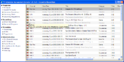
    TV Scheduler is "learning" about recorders and recording card through a pluggable recorder/tuner system. Here's what happens when you only have one card to record on:

    UpcomingOneCardNoCombine.png

    Notice the small alert icons that tell you when a program is in conflict with another one. Also note that some of the icons are red, others grey.

    Programs that have a red icon will still record, but they may have caused a conflict with another program, so that's why the alert icon is there. A tooltip will tell you what programs are conflicting.

    Programs that have a grey icon will not record.

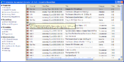
    Now let's plug a second card in the machine and see what the list of upcoming programs looks like:

    UpcomingTwoCardsNoCombine.png

    Looks much better doesn't it :D Only two programs on Sky One fail to record due to a conflict. Also notice the conflict popup shows both programs that were responsible for the conflict.

    OK, now it's time to activate the built-in combining of consecutive programs (back-to-back as these are also sometimes called).

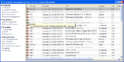
    First, let's go back to using one recording card again:

    UpcomingOneCardCombine.png

    Compare this to the very first screenshot and notice we'll be recording more programs this time around, but interestingly enough different programs :) This is quite logical due to the fact that programs that are shown sooner ar given priority over programs that are shown later. Note that you still have the schedule's priority itself to override this.

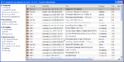
    Finally, let's look at the upcoming recordings list when you have two recording cards and have also activated the consecutive recordings option:

    UpcomingTwoCardsCombine.png

    Pretty good I'd say ;) Only one program is in conflict and will not be recorded.

    To manually deal with these conflicts there's two options:

    1. Specifically cancel a program, freeing the slot for another one.
    2. Increase or decrease the priority of a schedule.
    I hope this gives a good overview of what will be possible (soon). Feedback, as always, is more than welcome!
     

    Users who are viewing this thread

    Top Bottom