
 New Zealand
Hi guys,
I figured that the MP skin creators could do with a helping hand with editing tools.
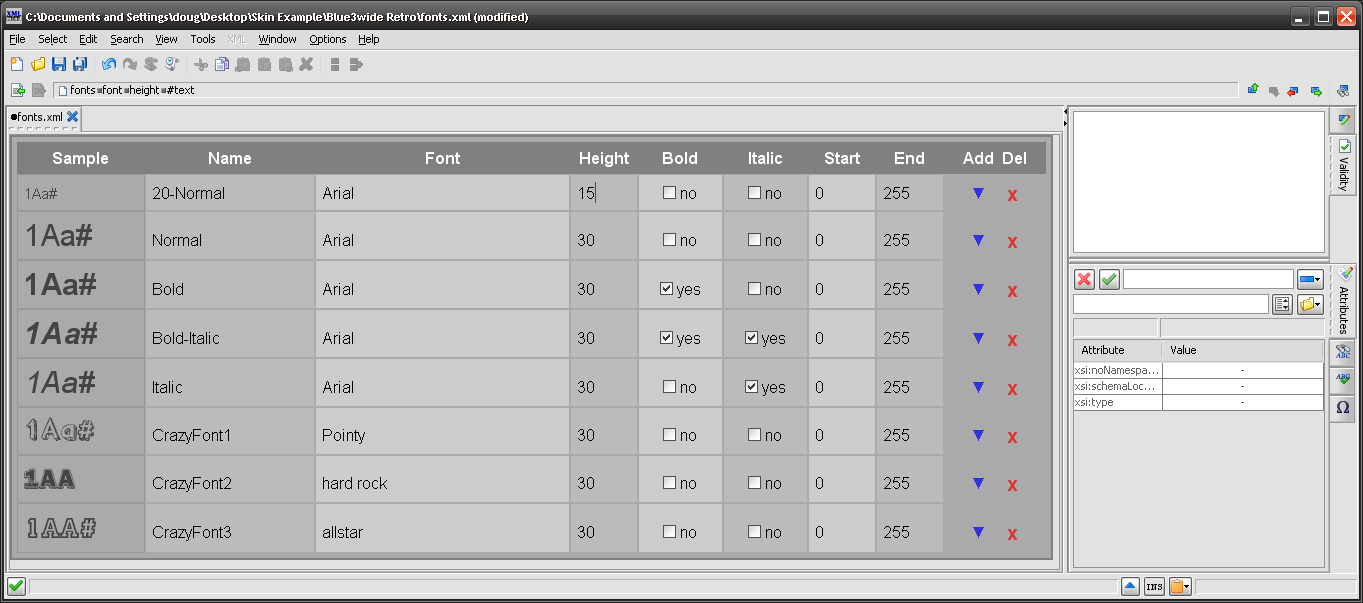
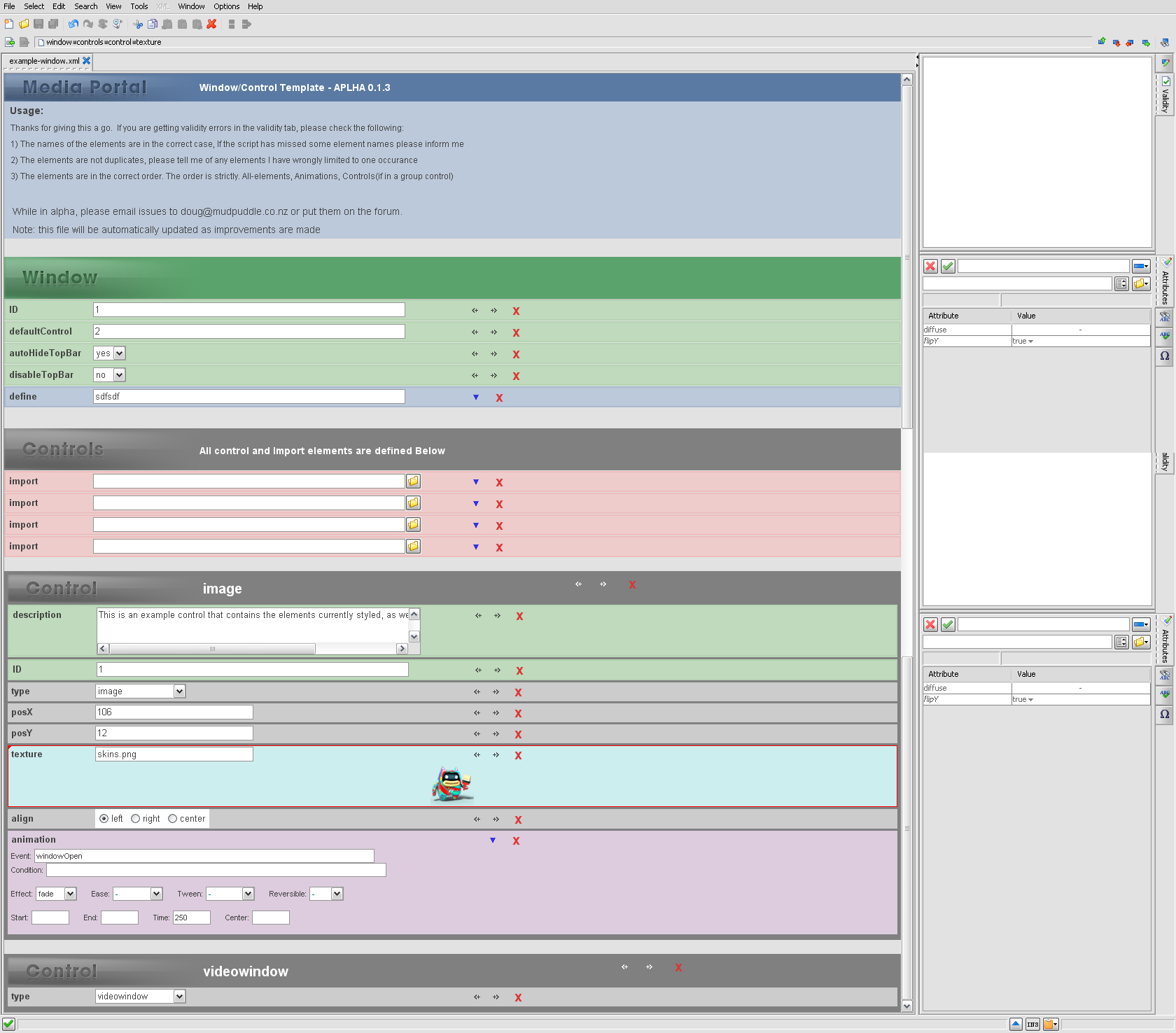
The Following tool will help editing skins. It is coded to provide drop down menus and pre-configured values (animation lists built in etc...) it is not a WYSIWYG editor.
Installing the required tools
XMLmind
You will need to download and install the personal edition of XMLmind, To quote their website:
It is a relatively easy to use editing program for XML files which has been heavily designed to edit doc-books, but is great to edit any XML file with a Schema
Configuring XMLmind for Media Portal
Once XMLmind is installed, copy media-portal.xxe into the following directory:
C:\Program Files\XMLmind_XML_Editor\addon\config\media-portal\
Setting up XML files to be recognised by XMLmind
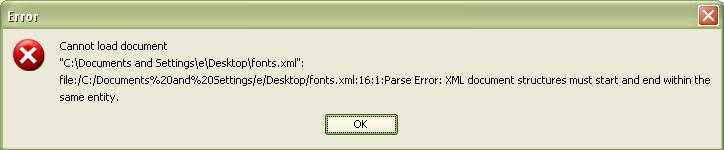
The first element of every file will need to be updated for XMLmind to recognise it as a mediaportal file. This is done by adding a namespace definition to the theme.
A find and replace on all theme documents in software like notepad++ or WinGrep will sort this out.
BEFORE
AFTER
You should now be able to open and edit the documents in XML mind to their full potential.
Due to the structure of the theme XML files. When making changes the View will not update automatically. To update the display press "Ctrl+L"


Advantages of this editing method:
I figured that the MP skin creators could do with a helping hand with editing tools.
The Following tool will help editing skins. It is coded to provide drop down menus and pre-configured values (animation lists built in etc...) it is not a WYSIWYG editor.
Installing the required tools
XMLmind
You will need to download and install the personal edition of XMLmind, To quote their website:
XMLmind XML Editor: Personal EditionPersonal Edition is free of charge, but comes with a license which restricts it to non-commercial use.
It is a relatively easy to use editing program for XML files which has been heavily designed to edit doc-books, but is great to edit any XML file with a Schema
Configuring XMLmind for Media Portal
Once XMLmind is installed, copy media-portal.xxe into the following directory:
C:\Program Files\XMLmind_XML_Editor\addon\config\media-portal\
Setting up XML files to be recognised by XMLmind
The first element of every file will need to be updated for XMLmind to recognise it as a mediaportal file. This is done by adding a namespace definition to the theme.
A find and replace on all theme documents in software like notepad++ or WinGrep will sort this out.
BEFORE
Code:
<window>AFTER
Code:
<window xmlns="https://www.team-mediaportal.com/mp-1">You should now be able to open and edit the documents in XML mind to their full potential.
Due to the structure of the theme XML files. When making changes the View will not update automatically. To update the display press "Ctrl+L"
Advantages of this editing method:
- Its very low tech, and should be relatively simple to maintain as the software develops.
- It lets designers worry about their intentions, rather than getting things spelt correctly in a text editor.
- It gives drop down menus, that make it very difficult to do something wrong.
- It can be programmed to give some visual feedback.
- Current XML files will need to be Re-ordered in a more strict structure. E.G. in the fonts file. Name must be first, Filename must be second, Height must be third...
- Its not a Wysiwyg, you will still need to have an understanding of the file structure.
- It may require that a few XML attributes/element names be made lower case by the developers.... But I'll try to get around it before asking anyone.
- Please reply with feedback, good or bad.
- Tell me things that you wish could be different, i may not have the skills to fix them but i'll certainly give it a go.
- Tell me things that bug you.


 .
.