Half Screen HDMI help needed... (1 Viewer)

nzdreamer55

MP Donator
  • Premium Supporter
  • August 31, 2010
    465
    28
    San Luis Obispo, CA
    Home Country
    United States of America United States of America
    So for a long time I have lived with the half screen problem. I cannot seem to fix it and need someone to shine some light on my problem.

    Right now I am using the HDMI output from my motherboard ASUS F1A75-M Pro -F1 Socket - A75 - SATA 6Gbps and USB 3.0 - mATX AMD (Hudson D3) Micro ATX DDR3 1800 AMD - FM1.

    I have it hooked up to a 42" Vizio TV via HDMI. I found a registry hack that I preformed and it didn't solve the problem and I have tried following the steps that some describe by unpluging the HDMI cable and then remoting in with team viewer or VNC (I have VNC) and unchecking the box that says Hide modes that this monitor cannot display. Then going to the adapter and changing to the display that works with my TV (1920x1080).

    The problem is that I don't get any resolutions listed above 1600 if my TV isn't plugged in and when it is, then the settings show me the 1920x1080, but then I get the half screen problem.

    I've also tried the tape over PIN 19 to no avail. It seems that my TV does not detect a signal unless that PIN is hot. The attached pictures are with the TV plugged in so you can see the adapter type and see that the list of models present.

    Thanks.
    -S
    Halfscreen 2.JPG

    Halfscreen 1.JPG


    nzdreamer55

    MP Donator
  • Premium Supporter
  • August 31, 2010
    465
    28
    San Luis Obispo, CA
    Home Country
    United States of America United States of America
    I found a registry hack that I preformed and it didn't solve the problem....

    Thanks for the link Spooky, but I have given that a try and it didn't work :-(

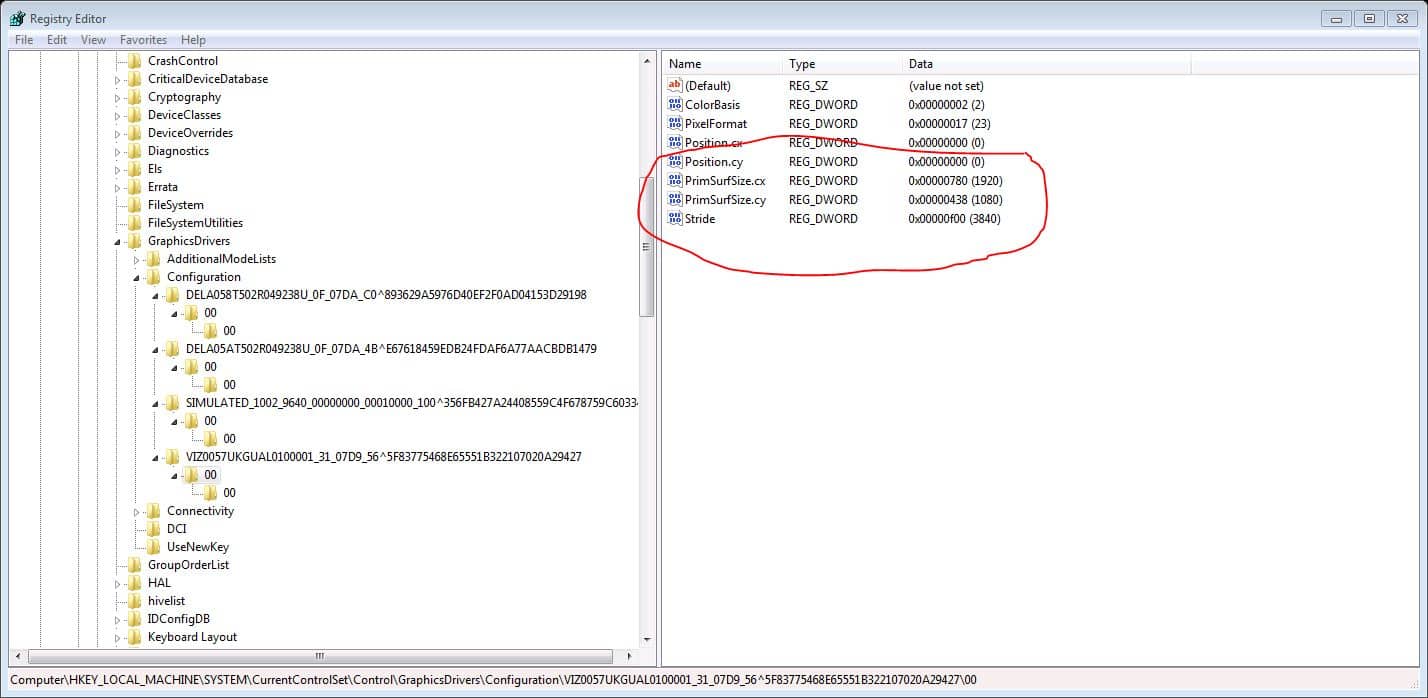
    Here is a shot of my reg with one key opened to what I suspect in my monitor since it starts with VIZ (Vizio). Note that the PrimSurfSize.cx and cy are set to 1920 and 1080 respectively. All the other keys are also set this way for the three other monitors and the ActiveSize.cx is also changed.
    -S
     

    Attachments

    • Halfscreen 3.JPG
      Halfscreen 3.JPG
      131.2 KB
    Last edited:

    gibman

    Retired Team Member
  • Premium Supporter
  • October 4, 2006
    2,998
    1,372
    Usa
    Home Country
    Ethiopia Ethiopia
    regarding pin 19 not working for you.

    I had the same experience until I did this trick (devcon rescan):
    https://forum.team-mediaportal.com/threads/htpc-hdmi-win7-and-its-many-issues.109242/#post-880636

    /gibman

    So for a long time I have lived with the half screen problem. I cannot seem to fix it and need someone to shine some light on my problem.

    Right now I am using the HDMI output from my motherboard ASUS F1A75-M Pro -F1 Socket - A75 - SATA 6Gbps and USB 3.0 - mATX AMD (Hudson D3) Micro ATX DDR3 1800 AMD - FM1.

    I have it hooked up to a 42" Vizio TV via HDMI. I found a registry hack that I preformed and it didn't solve the problem and I have tried following the steps that some describe by unpluging the HDMI cable and then remoting in with team viewer or VNC (I have VNC) and unchecking the box that says Hide modes that this monitor cannot display. Then going to the adapter and changing to the display that works with my TV (1920x1080).

    The problem is that I don't get any resolutions listed above 1600 if my TV isn't plugged in and when it is, then the settings show me the 1920x1080, but then I get the half screen problem.

    I've also tried the tape over PIN 19 to no avail. It seems that my TV does not detect a signal unless that PIN is hot. The attached pictures are with the TV plugged in so you can see the adapter type and see that the list of models present.

    Thanks.
    -S
    View attachment 106919
    View attachment 106918
     

    nzdreamer55

    MP Donator
  • Premium Supporter
  • August 31, 2010
    465
    28
    San Luis Obispo, CA
    Home Country
    United States of America United States of America
    Last edited:

    nzdreamer55

    MP Donator
  • Premium Supporter
  • August 31, 2010
    465
    28
    San Luis Obispo, CA
    Home Country
    United States of America United States of America
    So gibman,

    Thanks for the help. I have created a bat file called Rescan with the one line in it "C:\i386\devcon.exe rescan"
    The problem is that when I run the bat the UAC (user account control) comes up and asks if I want to run this program and then after it runs the program compatibility assistant and asks if this program (devcon.exe) installed correctly.

    Is there a work around for these things? Do I just turn them off? If so, isn't the UAC supose to help protect my computer from stuff being installed without my knowledge?

    Thanks again for the help.
    -S

    P.S. After I said that the program installed correctly the program compatibility assistant no longer comes up so that is good.

    Well the bad news is that when I turn off my TV and then turn it back on, there is no "event" to trigger the computer to run this bat so for this to work, the computer has to go in and out of sleep/hibernation. Need to change how we turn things on and off. Also the cmd window stays open when media portal starts which is a bummer. Is there a way to run it silently? I looked at the help file for devcon and there was not a silent switch. Is there a generic silent switch for command line programs?

    Thanks again
    Steve
     
    Last edited:

    gibman

    Retired Team Member
  • Premium Supporter
  • October 4, 2006
    2,998
    1,372
    Usa
    Home Country
    Ethiopia Ethiopia
    I use both devcon rescan + tape hack.

    UAC is a pain.
    u know u can disable this, which I recommend for HTPC usage.
    run menu => type 'msconfig' => tools => change UAC settings

    I dont even run AV software on my HTPC rigs.

    when I have my hibernatetrigger app execute my batch file, well the batch file doesn't stay open here.

    rebooting the PC should not need the devcon command, only needed when coming out of standby.
    in any case u can run it at startup as well :)

    /gibman
     

    nzdreamer55

    MP Donator
  • Premium Supporter
  • August 31, 2010
    465
    28
    San Luis Obispo, CA
    Home Country
    United States of America United States of America
    Well, I have to say that the entire Team at the forums has helped me a lot, but despite all the tricks to get the computer to not have a half screen (this happens every time I turn off the power to my TV) I cannot get it to play nice. I applyed a work around by hooking up a DVI to HDMI cable and running this to my TV and running the stereo output from the back of my HTPC to my speaker bar which has several inputs. While this isn't the best solution, it works and so thank you to everyone who tried. I think that the problem is that my TV needs PIN 19 to receive an input so no matter if my HTPC is sending data, if the TV won't open up the HDMI input because it does not see power at PIN 19, I cannot get a signal from the HTPC.
    -S
     

    Scythe42

    Retired Team Member
  • Premium Supporter
  • June 20, 2009
    2,065
    2,703
    52
    Berlin
    Home Country
    Germany Germany
    A workaround for HDMI handshake issues when negotiating the resolution is in the works. A friend of mine had the issue as well (I never had it).

    I checked his BIOS settings and updated some settings in regards to AHCI/ACPI. I just set everything to the"highest" level (meaning newest version) and also made sure that no "non PNP OS" stuff or other "legacy" options were selected. So a general overhault from the defaults he had. And the issue was gone as he told me. This might not work for everyone as it is largely BIOS dependent and even other equipment can be the cause of problems. You could screw things up bad here. So if you do not know what you are doing, better don't as it might not help you.

    The problem is that the WDDM driver model when certain ACPI versions are not available, HDMI handshakes work a bit differently (fully according to specs). This results in a visible fullscreen application getting a non cooperative DirectX device message DURING the negotiating setting it to some XGA resolution before negotiating continues instead of AFTER it. And MP can suffer from this depending on your ACPI integration and settings on a BIOS/EFI level (they are also known to be buggy very often at newer versions).

    In this case the system does try and error as it cannot fully control the interface. ACPI does more stuff than just sleep states. And please don't start to play with tools that manipulate such things on an OS level. This will only make stuff worse.

    Anyway, long story short:

    As a workaround MP will minimize itself on such negotiations (meaning it will not be touched at once by the lost D3D device) and later restores itself to the now correct negotiated resolution. This should also apply to S3 states, switching displays and other stuff. Needs some work to test but it should be possible to provide a workaround for most systems that suffer HDMI handshake issues in regards to not minimized full screen apps during the handshake.

    But the root cause are just bad BIOS defaults that do not allow the GPU to do all the modern stuff "seamless".

    Basically any HDMI handshake/negotiating that involved the GPU should not have side effects on MP in the future anymore. This needs some work as the D3D device part that is involved here needs some rework.

    So please be patient here. I'm working on this one.
     

    Users who are viewing this thread

    Top Bottom