

 Sweden
- Moderator
- #1
I've finally nailed why I can't playback VIDEO_TS movies properly in My Videos after importing them using the nfo importer and using nfo files exported from MovPicNFO. This also affects stacked movies (moviename cd1.avi, moviename cd2.avi). The nfo files exported by MovPicNFO has issues too, but I figure the import behavior should be easy enough to fix and solve these issues, once and for all.
Problem: When an NFO file that is to be used for the import of a movie into My Videos lack a path to the video file included, My Videos chooses poorly, and the movie won't playback as expected.
Steps to reproduce including screens below:
VIDEO_TS FOLDER
STACKED FILES
Sure, the MovPicNFO tool could just include the path into the NFO file, but what if the movie file is moved to a different location?
Edit: Sorry for using thumbnails for the small pictures. They are can be clicked though.
Emph
Problem: When an NFO file that is to be used for the import of a movie into My Videos lack a path to the video file included, My Videos chooses poorly, and the movie won't playback as expected.
Steps to reproduce including screens below:
VIDEO_TS FOLDER
File structure:
Movie folder\VIDEO_TS\VIDEO_TS_IFO, VIDEO_TS_VOB, VIDEO_TS.NFO
1. Choose a movie in Moving Pictures that is a DVD rip (VIDEO_TS folder copied to HDD)
2. Look at the "File(s)" field in Moving Pictures' Movie Manager tab, it should look like this (VIDEO_TS.IFO):
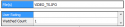
3. In MovPicNFO, browse to the movie in the MovingPictures.dat and export an NFO file from it. (result attached as "Exported_from_MovPicInfo.txt", renamed to be allowed to be uploaded, rename it to .nfo). Notice that no path is included in the nfo file. The NFO file will appear in this location: "Movie folder\VIDEO_TS\VIDEO_TS.NFO"
4. In My Videos, import the directory with this setting marked:
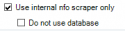
5. Scan the directory, and when it's finished, check the Editor/Files tab for this result (VIDEO_TS.VOB):
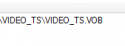
Playing this back in My Videos will result in either the DVD menu or a short Studio logo, then no movie.
6. Click the Add button in the Files tab and select the correct file, VIDEO_TS.IFO and remove the VIDEO_TS.VOB.
7. Click the Title tab, and notice that the imported movie title is gone, and instead, you have VIDEO_TS:

8. Rename the title and click Save
9. My Videos will now export another NFO file (result attached as "Exported_from_My_Videos.txt", renamed to be allowed to be uploaded, rename it to .nfo). Notice that a COMPLETE path is now included in the nfo file. The NFO file will appear in this location: "Movie folder\Movie title.nfo"
Movie folder\VIDEO_TS\VIDEO_TS_IFO, VIDEO_TS_VOB, VIDEO_TS.NFO
1. Choose a movie in Moving Pictures that is a DVD rip (VIDEO_TS folder copied to HDD)
2. Look at the "File(s)" field in Moving Pictures' Movie Manager tab, it should look like this (VIDEO_TS.IFO):
3. In MovPicNFO, browse to the movie in the MovingPictures.dat and export an NFO file from it. (result attached as "Exported_from_MovPicInfo.txt", renamed to be allowed to be uploaded, rename it to .nfo). Notice that no path is included in the nfo file. The NFO file will appear in this location: "Movie folder\VIDEO_TS\VIDEO_TS.NFO"
4. In My Videos, import the directory with this setting marked:
5. Scan the directory, and when it's finished, check the Editor/Files tab for this result (VIDEO_TS.VOB):
Playing this back in My Videos will result in either the DVD menu or a short Studio logo, then no movie.
6. Click the Add button in the Files tab and select the correct file, VIDEO_TS.IFO and remove the VIDEO_TS.VOB.
7. Click the Title tab, and notice that the imported movie title is gone, and instead, you have VIDEO_TS:
8. Rename the title and click Save
9. My Videos will now export another NFO file (result attached as "Exported_from_My_Videos.txt", renamed to be allowed to be uploaded, rename it to .nfo). Notice that a COMPLETE path is now included in the nfo file. The NFO file will appear in this location: "Movie folder\Movie title.nfo"
STACKED FILES
File structure:
Ponyo\Ponyo cd1.mkv, Ponyo cd2.mkv, Ponyo cd1.nfo
1. Choose a movie in Moving Pictures that has stacked files (movie cd1.avi, movie cd2.avi)
2. Look at the "File(s)" field in Moving Pictures' Movie Manager tab, it should look like this (movie cd1.mkv, movie cd2, mkv):

3. In MovPicNFO, browse to the movie in the MovingPictures.dat and export an NFO file from it. (result attached as "Ponyo cd1(exported from movpicinfo).txt", renamed to be allowed to be uploaded, rename it to .nfo). Notice that no path is included in the nfo file.
4. In My Videos, import the directory with this setting marked:
5. Scan the directory, and when it's finished, check the Editor/Files tab for this result (movie cd2.mkv):
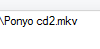
Playing this back in My Videos will result no question which of the stacked files to playback, but the movie will start half way in the middle.
6. Click the Add button in the Files tab and add "movie cd1.mkv". Notice that there is no button for ordering the files, and the "movie cd2.mkv" will be above "movie cd1.mkv". Remove "movie cd2.mkv" and add it again to get the correct playback order.
7. Click the Title tab, and notice that the imported movie title is gone, and instead, you have "Movie cd1":
8. Rename the title and click Save
9. My Videos will now export another NFO file (result attached as "Ponyo(exported from my videos).txt", renamed to be allowed to be uploaded, rename it to .nfo). Notice that a COMPLETE path is now included in the nfo file.
Ponyo\Ponyo cd1.mkv, Ponyo cd2.mkv, Ponyo cd1.nfo
1. Choose a movie in Moving Pictures that has stacked files (movie cd1.avi, movie cd2.avi)
2. Look at the "File(s)" field in Moving Pictures' Movie Manager tab, it should look like this (movie cd1.mkv, movie cd2, mkv):
3. In MovPicNFO, browse to the movie in the MovingPictures.dat and export an NFO file from it. (result attached as "Ponyo cd1(exported from movpicinfo).txt", renamed to be allowed to be uploaded, rename it to .nfo). Notice that no path is included in the nfo file.
4. In My Videos, import the directory with this setting marked:
5. Scan the directory, and when it's finished, check the Editor/Files tab for this result (movie cd2.mkv):
Playing this back in My Videos will result no question which of the stacked files to playback, but the movie will start half way in the middle.
6. Click the Add button in the Files tab and add "movie cd1.mkv". Notice that there is no button for ordering the files, and the "movie cd2.mkv" will be above "movie cd1.mkv". Remove "movie cd2.mkv" and add it again to get the correct playback order.
7. Click the Title tab, and notice that the imported movie title is gone, and instead, you have "Movie cd1":
8. Rename the title and click Save
9. My Videos will now export another NFO file (result attached as "Ponyo(exported from my videos).txt", renamed to be allowed to be uploaded, rename it to .nfo). Notice that a COMPLETE path is now included in the nfo file.
Sure, the MovPicNFO tool could just include the path into the NFO file, but what if the movie file is moved to a different location?
Edit: Sorry for using thumbnails for the small pictures. They are can be clicked though.
Emph

